Unity と Warudo SDK のインストール
このページでは、Unity Editor と Warudo SDK のインストール方法を順を追って説明します。
現在サポートされているのは 64 ビット Windows システムのみです。
ステップ1 - Unity Hub をインストールする
まず、Unity Hub をダウンロードします(通常は最新バージョンで問題ありません)。 Unity Hub は、さまざまなバージョンの Unity Editor と、それぞれのバージョンのプロジェクトを管理するためのソフトウェアです。
Unity 公式サイトを開き、下の画像の 2 つの赤枠のいずれかをクリックして Unity Hub をダウンロードします。ダウンロードには Unity アカウントの登録が必要になる場合があります。
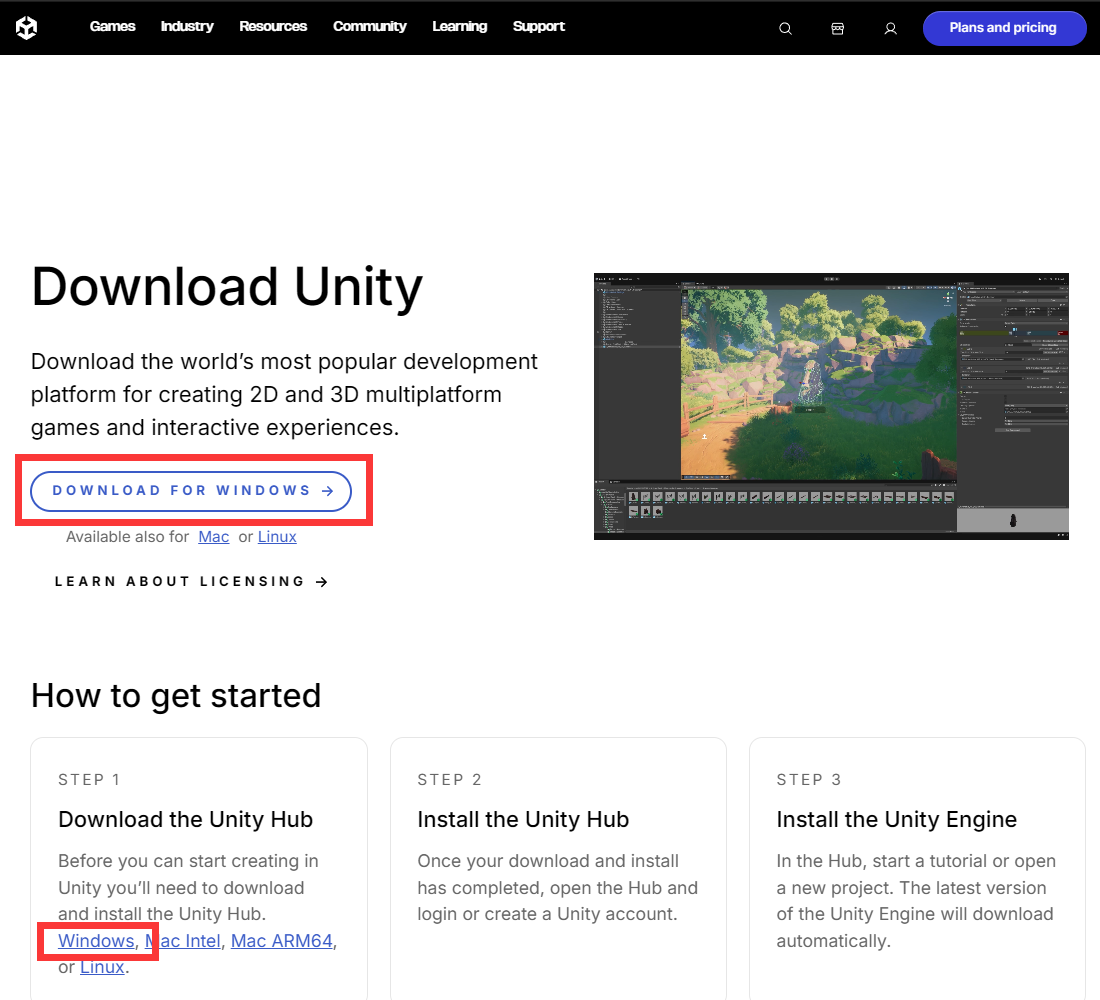
ダウンロードした UnityHubSetup.exe を実行し、任意のパスにインストールします。 インストール後、正しく起動できることを確認します。
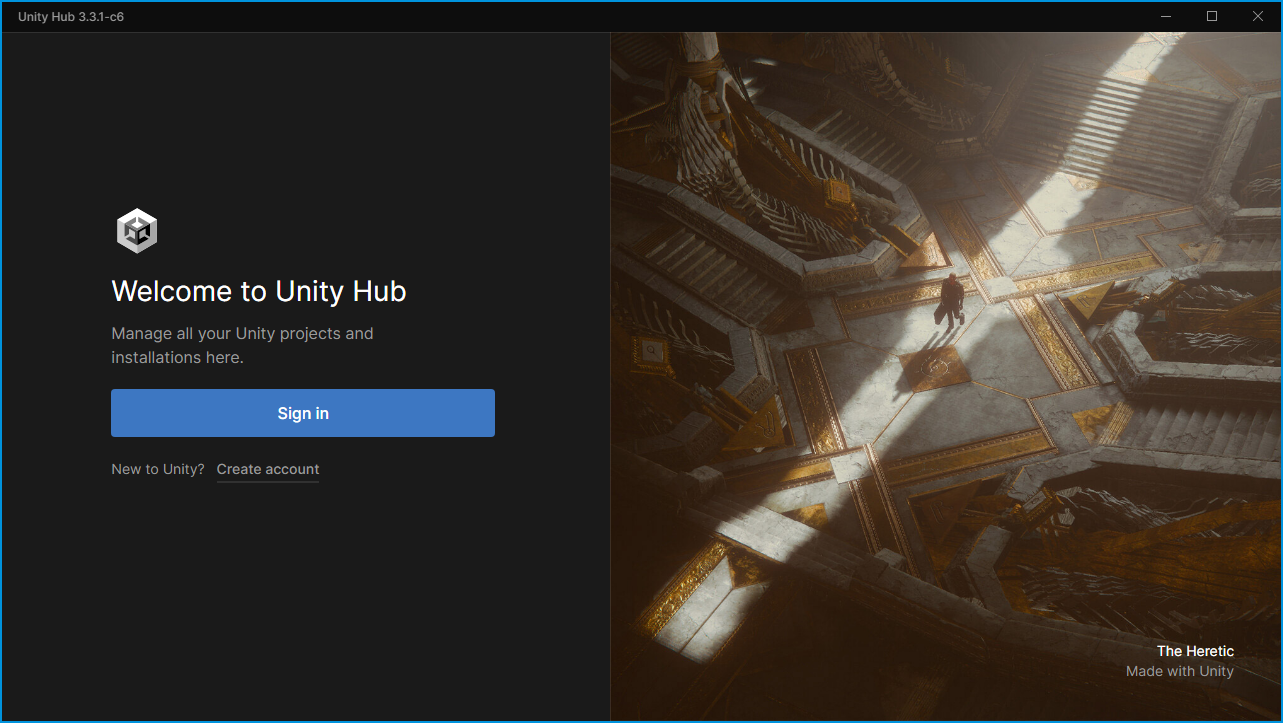
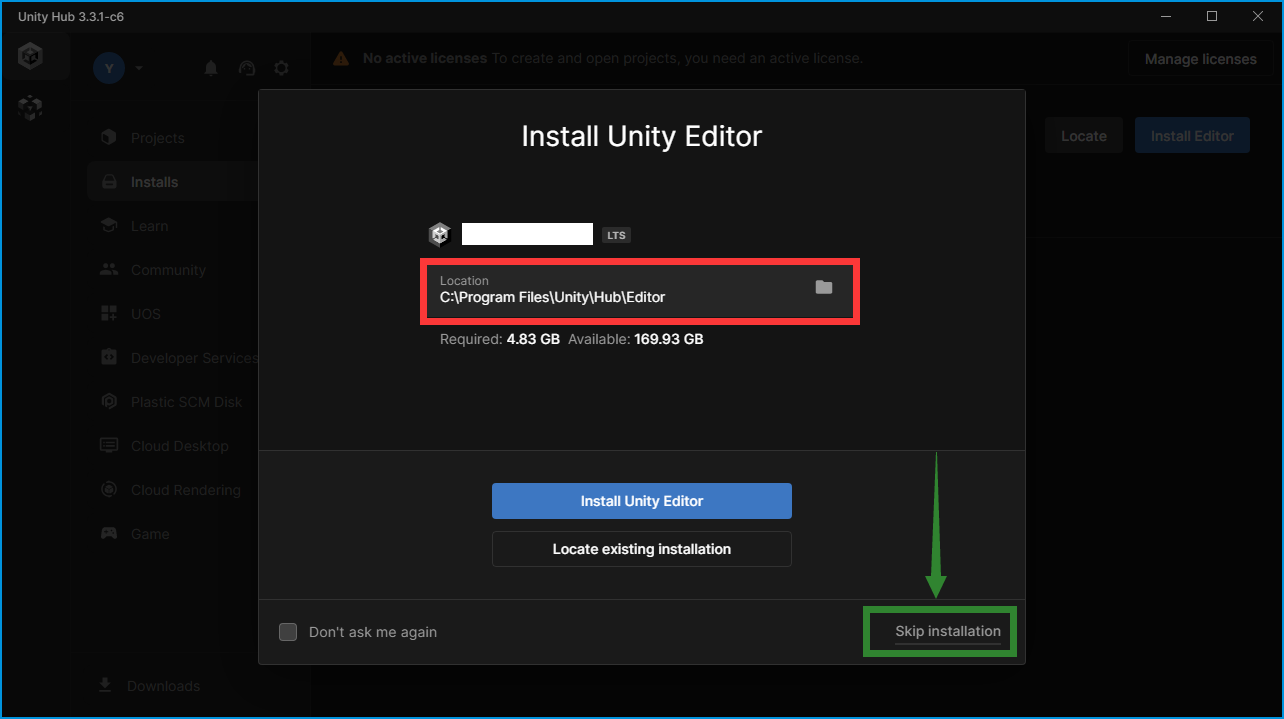
ログイン後、最新の Long-Term Support(LTS)版 Unity Editor のダウンロードが自動的に提案されます。 Warudo ではこのバージョンを使用しないため、Skip installation をクリックすることをおすすめします。
ただし、そのバージョンをインストールする場合は、複数の Unity Editor バージョンを管理しやすくするため、
インストールパスを ...\<version>(例: D:\Softwares\Unity\2021.3.18f1)に変更し、
既定のインストールパスである C:\Program Files\Unity\Hub\Editor は使用しないことを強くおすすめします。
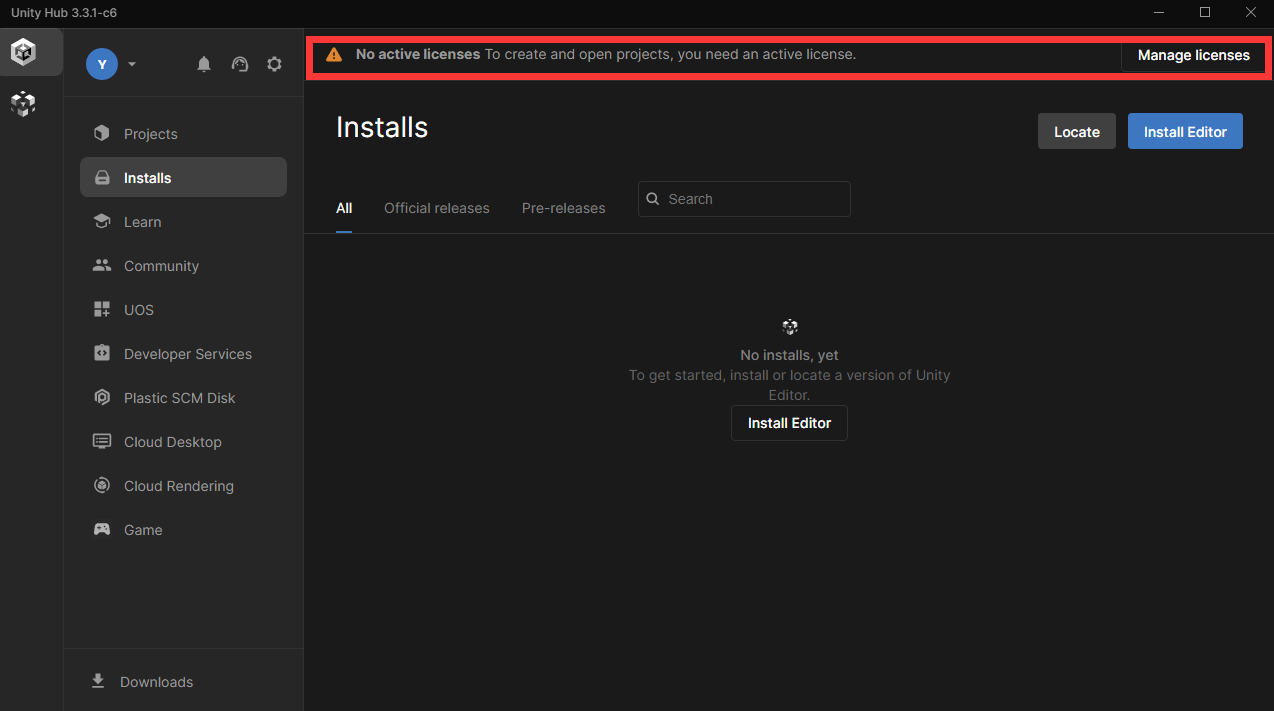
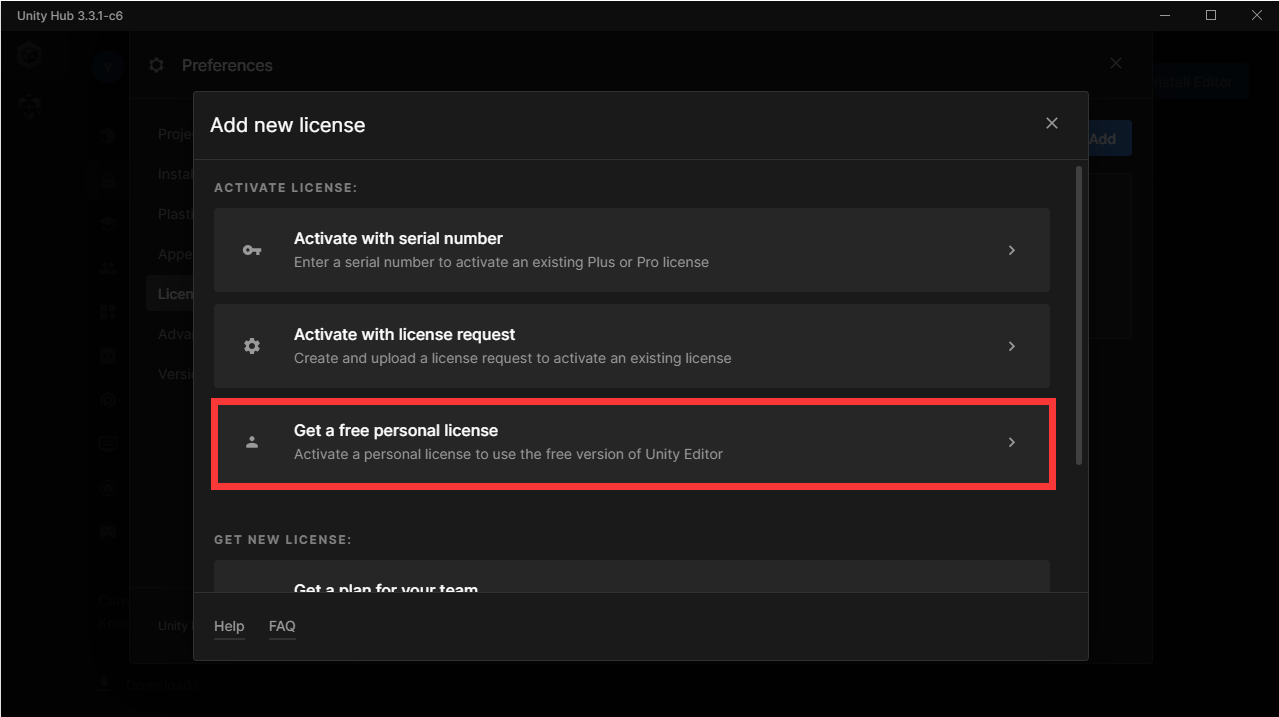
Unity Personal Edition の利用条件を満たしている場合は、ここで個人向けライセンスをアクティベートして取得できます。
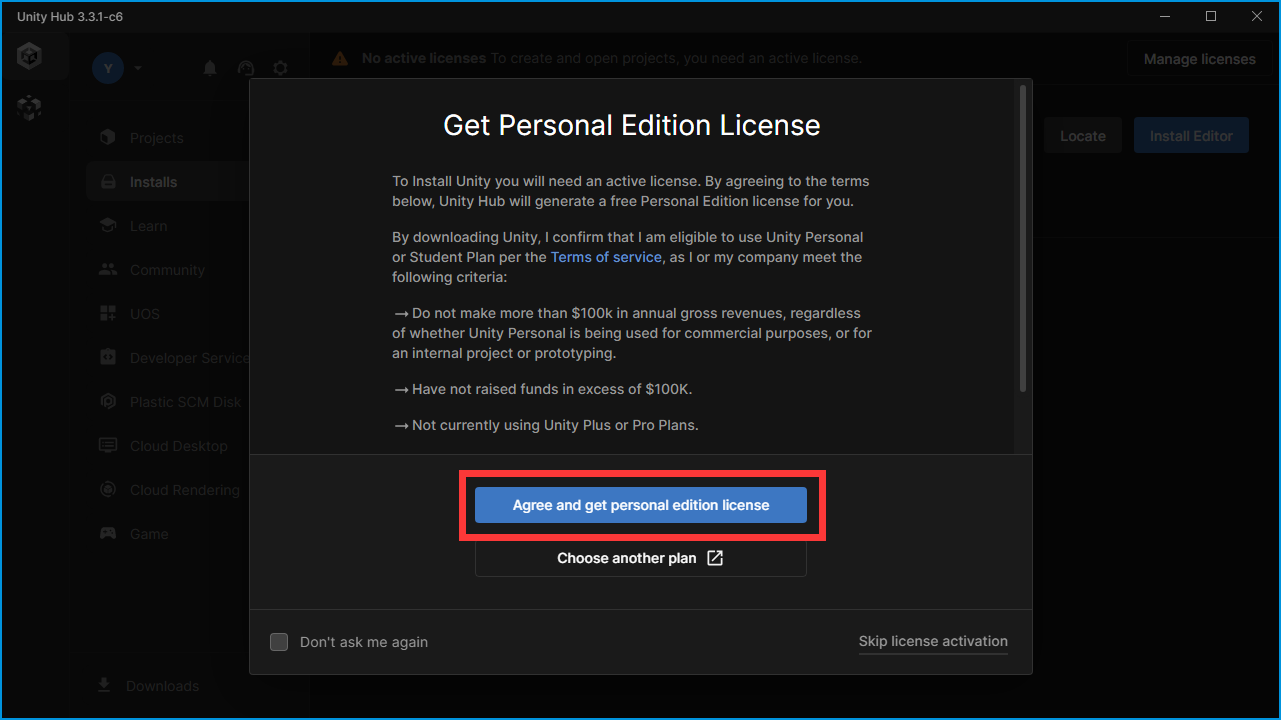
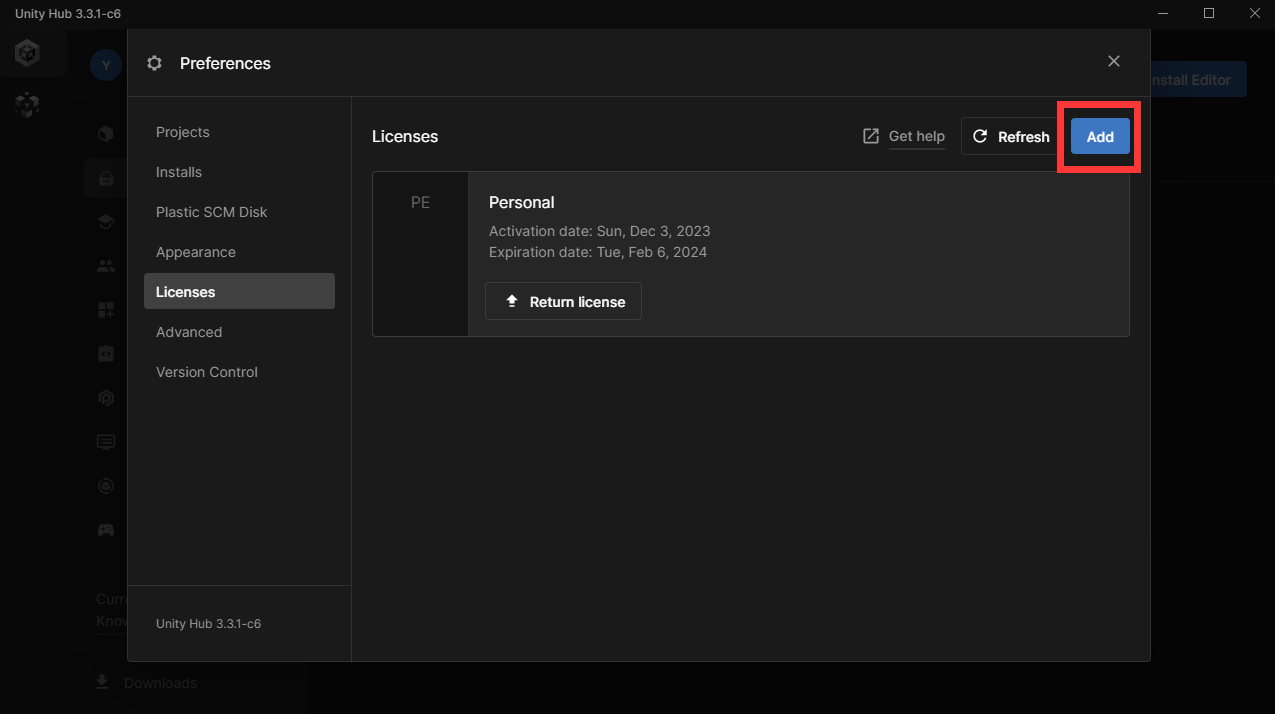
前の手順でアクティベーションをスキップした場合や失敗した場合も、Unity Hub で後から手動でライセンスをアクティベートできます。
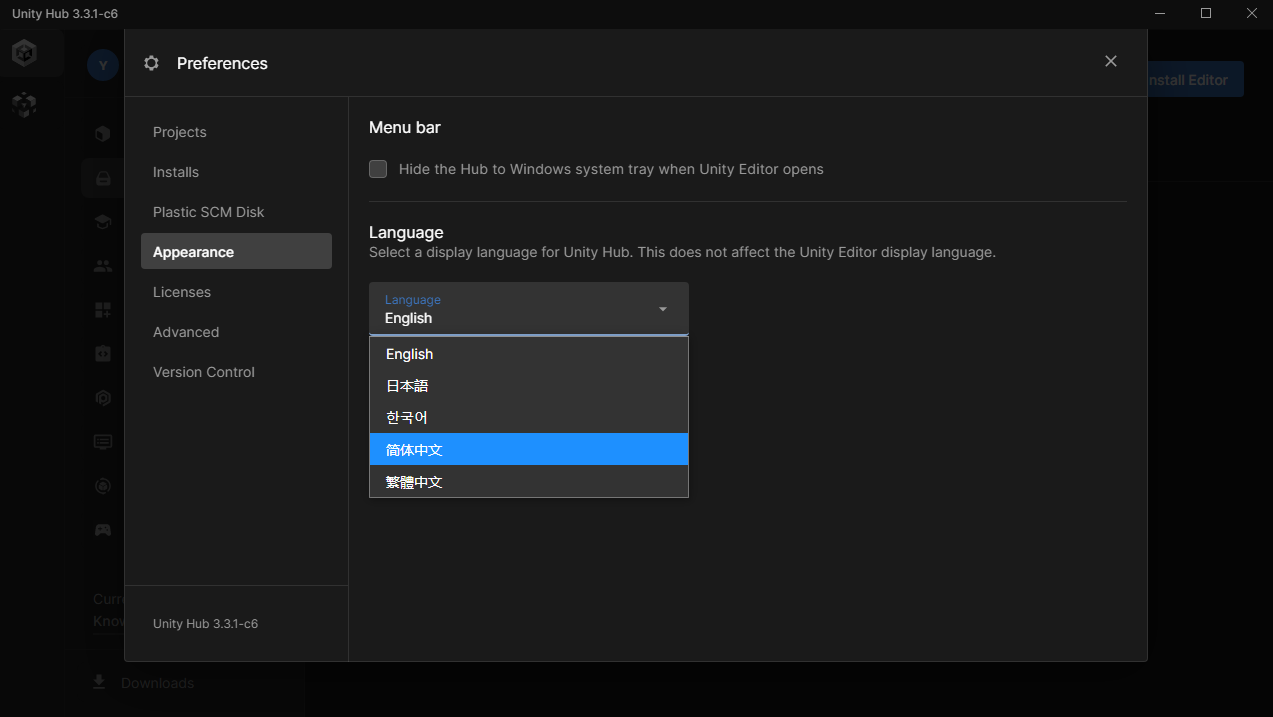
Unity Hub の言語は、【Preferences】-【Appearance】で変更できます。
ステップ2 - Unity Editor をインストールする
次に Unity Editor のインストーラーをダウンロードします。バージョンは必ず 2021.3.45f2 でなければなりません。
この特定のパッチリリースは Warudo SDK との互換性のために必要であり、別のバージョンに置き換えることはできません。インストールするには、次の手順に従ってください。
- Unity Download Archiveに移動します。
- 2021 タブで、Version 2021.3.45f2 (Oct 3, 2025) を見つけます。
- INSTALL をクリックします。
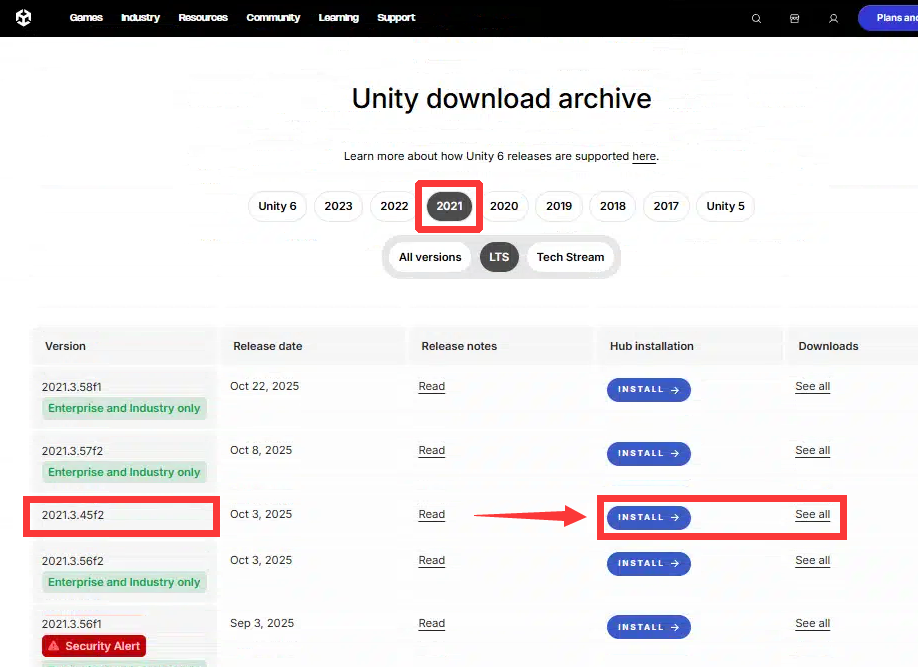
- ブラウザーが Unity Hub を開こうとするので、Open を選択します。
- 開いた Unity Hub ウィンドウで Continue をクリックし、次に Install をクリックします。
- インストールには時間がかかる場合があるため、しばらくお待ちください。
4. が失敗した場合、または手動でインストールする場合は、2. に戻ってから次の手順に進んでください。
- See all をクリックします。
- Windows をクリックしてインストーラーをダウンロードします(ファイル名は
UnitySetup64-2021.3.45f2.exeに似ており、約 3~4 GiB です)。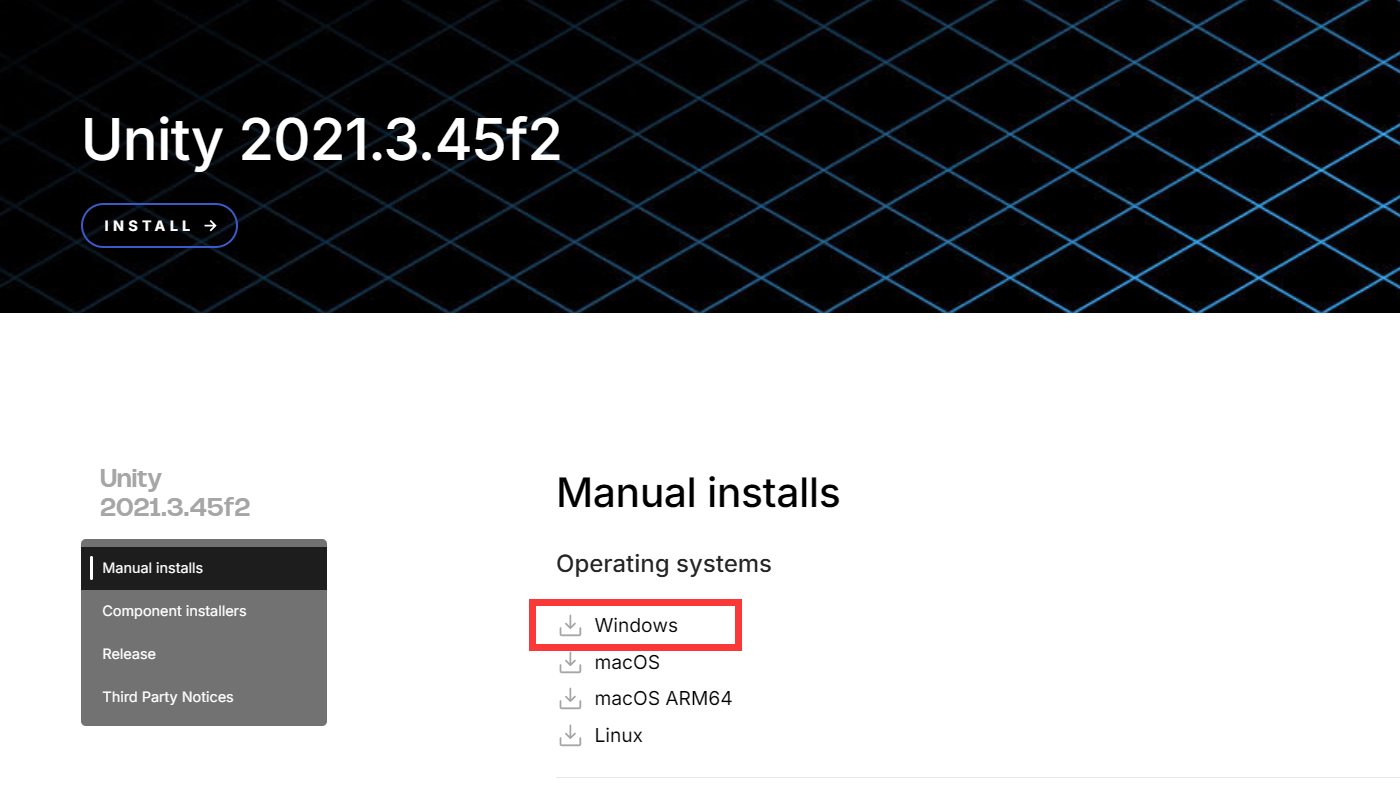
- ダウンロードしたインストーラーを実行して、インストールを開始します。
既定のインストール先は
C:\Program Files\Unity 2021.3.45f2の場合があります。変更することもできますが、複数の Unity バージョンを管理する際の混乱を避けるため、パスにバージョン番号を含めることをおすすめします(例:D:\Softwares\Unity\2021.3.45f2)。 インストールには時間がかかる場合があるため、しばらくお待ちください。 - インストール後、Unity Hub を開きます。
- Installs → Locate に移動します。
- インストールしたエディターフォルダを参照し、
Unity.exeをEditorサブフォルダ内で選択します。 - Select Editor をクリックします。
上記の手順を完了すると、必要な Unity バージョン(2021.3.45f2)が Unity Hub に表示されるはずです。
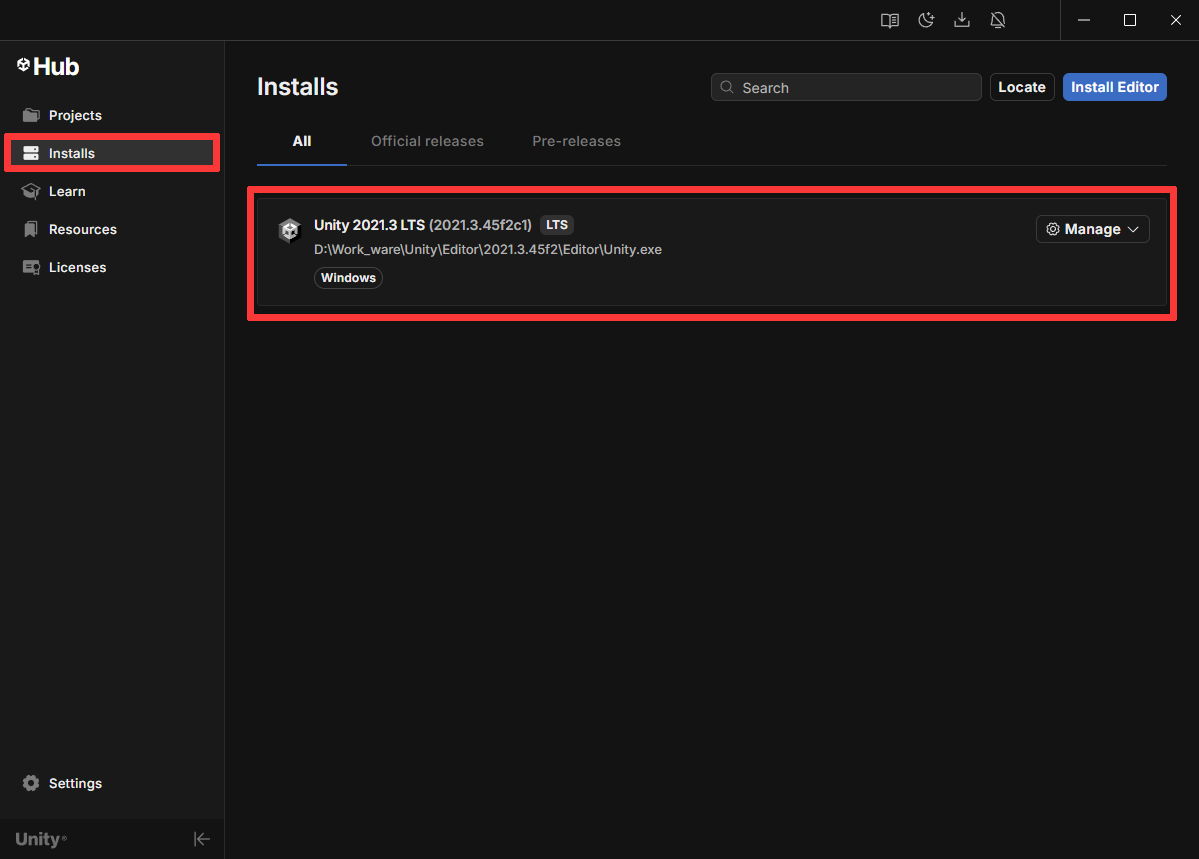
ステップ3 - Warudo SDK をダウンロードしてインポートする
Unity で Warudo SDK をセットアップする方法は 2 つあります。
- Unity Package Manager を使用してパッケージをインポートする(推奨)
- Mod 制作プロジェクトテンプレートをダウンロードする
プロジェクトを最新の Warudo Mod SDK リリースと簡単に同期できるため、Package Manager の方法を強くおすすめします。GitHub への接続が不安定な場合は、テンプレートプロジェクトを使用できます。
方法 A — Unity Package Manager(推奨)
インストール前に、File → Build Settings... → Player Settings... → Other Settings → Api Compatibility Level が .NET Framework に設定され、Assembly Version Validation のチェックが外れていることを確認してください。 (このページには Edit → Project Settings → Player → Other Settings からもアクセスできます。)
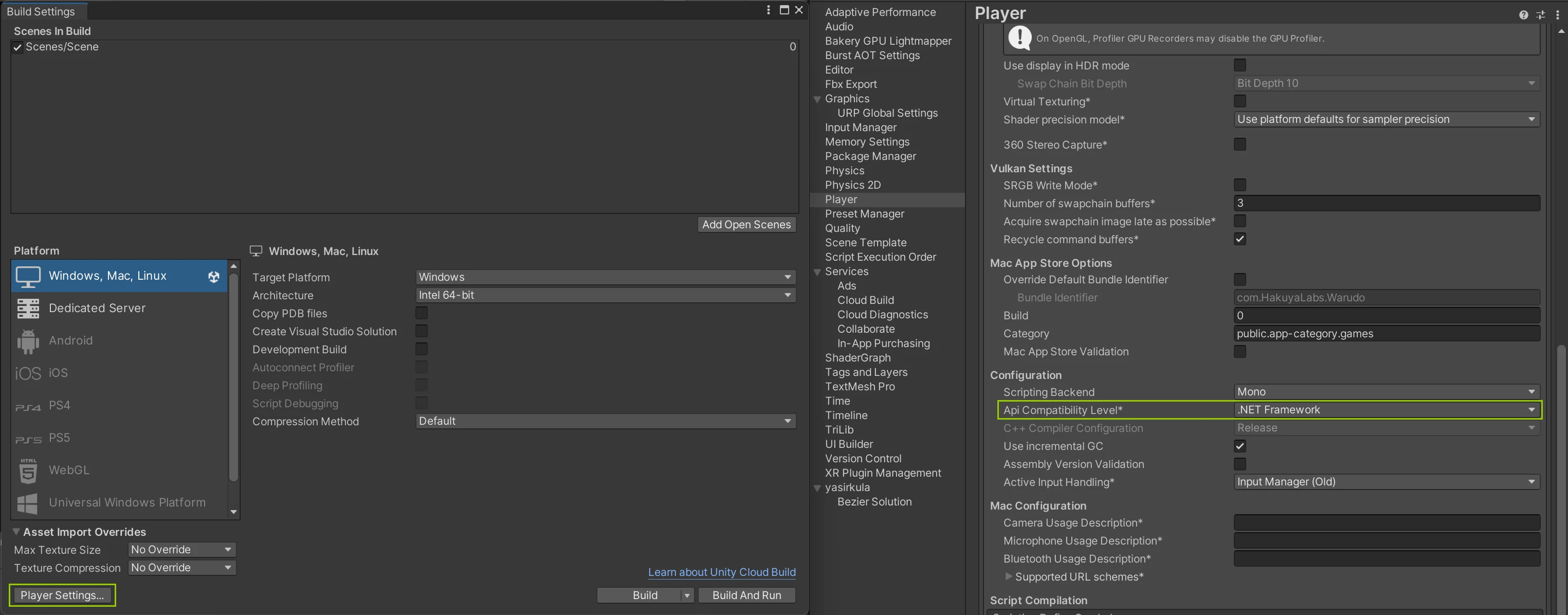
Unity プロジェクトを開き、Window → Package Manager を選択します。Package Manager ウィンドウで + ボタン(左上)をクリックし、Add package from git URL... を選択します。次の URL を入力してください。
https://github.com/HakuyaLabs/Warudo-Mod-Tool.git#0.14.3.10
GitHub に安定してアクセスできない場合は、tarball をダウンロードできます。
代わりに Add package from tarball... を使用してください。
Add をクリックすると、Unity がパッケージをダウンロードしてインストールします。Unity から事前ビルド済みパッケージまたは変換について確認された場合は、Yes を選択し、パッケージのインポートが完了するまで待ちます。
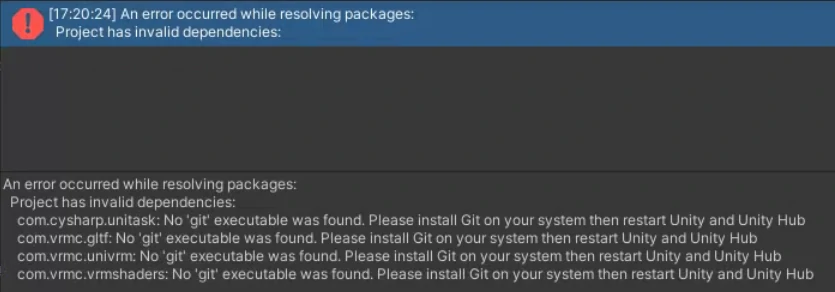
No 'git' executable was found. Please install Git on your system then restart Unity and Unity Hub のようなエラーが表示される場合、システムに Git がインストールされていません。https://git-scm.com/download から Git をインストールし、Unity と Unity Hub を再起動してください。
方法 B — Mod 制作プロジェクトテンプレート
Warudo SDK 0.14.3.10 Modding Project.zip
- 上記の zip をフォルダにダウンロードして展開します(例:
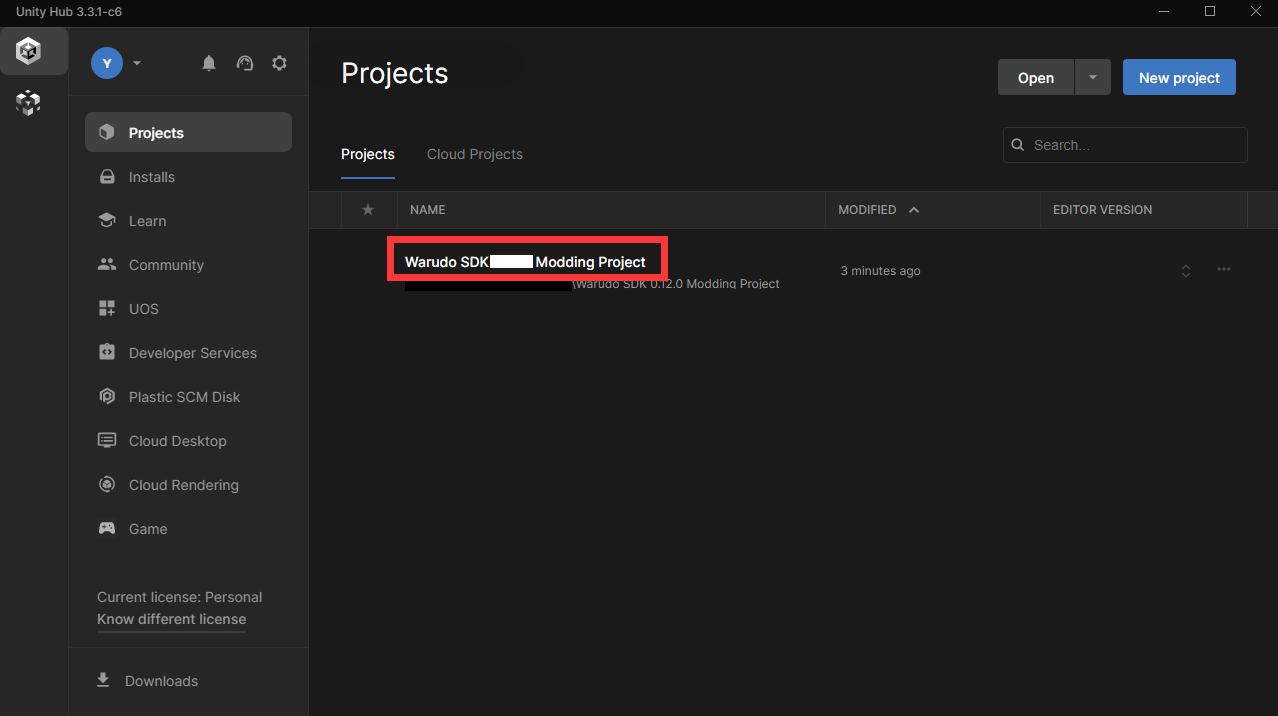
D:\Softwares\Unity\2021.3.45f2\Projects\WarudoModding)。 - Unity Hub で Add(または Open)をクリックし、そのフォルダを選択します。
- プロジェクトを開きます。初回起動時には、Unity がアセットをインポートするまで数分かかる場合があります。
プロジェクトの読み込みが完了したら、Console に Errors がないか確認します(Warnings が少数表示されるのは正常です)。Errors がなければ、SDK は正しくインストールされており、最初の Mod を作成する準備ができています。
Console に Errors が表示される場合は、Clear をクリックしてからもう一度確認してください。問題が解決しない場合は、Discord またはコミュニティチャンネルでお問い合わせください。
すでに次のいずれかのアセットを含む既存のプロジェクトに SDK をインポートする場合は、それらがスタブファイルに置き換わらないよう、インポート中に対応するフォルダのチェックを外してください。
- Dynamic Bones →
Packages/DynamicBone - Final IK →
Plugins/RootMotion/FinalIK - PuppetMaster →
Plugins/RootMotion/PuppetMaster
すべてが Errors なくインポートされたら、はじめての Mod を作成するから始められます。
バージョン履歴
Warudo SDK 0.14.3.10(最新)
- Unity バージョン: 2021.3.45f2(Oct 3, 2025)
- Unity Package Tarball: Warudo-Mod-Tool-0.14.3.10.tgz
- Unity プロジェクト: Warudo SDK 0.14.3.10 Modding Project.zip
Warudo SDK 0.12.0
- Unity バージョン: 2021.3.18(Feb 1, 2023)
- Unity Package File: Warudo SDK 0.12.0.unitypackage
- Unity プロジェクト: Warudo SDK 0.12.0 Modding Project.zip