DMX Lighting Control
This feature is available only in Warudo Pro.
Warudo can receive DMX data over Art-Net. You can use a DMX lighting controller to control objects in your scene, or use the Mod API to map DMX channels to custom behaviors.
The Art-Net plugin broadcasts DMX data through the PluginRouter. A mod can connect to Warudo.Plugins.ArtNet to listen for channel values from each universe.
Create a Mod That Receives DMX Data
First, create a plugin in an environment mod or another type of mod. The following example registers a plugin with the ID YourName.Environment.Plugin:
using Warudo.Core.Attributes;
using Warudo.Core.Plugins;

[PluginType(Id = "YourName.Environment.Plugin")]
public class EnvPlugin : Plugin
{
}
Next, create a MonoBehaviour that listens for DMX data through the PluginRouter and maps the channel values to an object in the scene.
The following example listens to Universe 0 and maps the first three DMX channels (array indices 0–2, with values from 0 to 255) to the object's rotation around the X, Y, and Z axes:
using System;
using UnityEngine;
using Warudo.Core;
using Warudo.Core.Plugins;

public class DMXReceiver : MonoBehaviour
{
    public class DmxEvent : Warudo.Core.Events.Event
    {
        public int Universe { get; set; }
        public int[] Channel { get; set; }
    }

    private Guid dmxConnection;

    private void OnEnable()
    {
        Plugin targetPlugin = Context.PluginManager.GetPlugin("YourName.Environment.Plugin");
        dmxConnection = Context.PluginRouter.ConnectSlot<DmxEvent>(
            targetPlugin,
            "Warudo.Plugins.ArtNet",
            (dmx, source) =>
            {
                if (dmx.Universe != 0)
                {
                    return;
                }

                int channel1 = dmx.Channel[0];
                int channel2 = dmx.Channel[1];
                int channel3 = dmx.Channel[2];

                transform.eulerAngles = new Vector3(
                    channel1 / 255f * 360f,
                    channel2 / 255f * 360f,
                    channel3 / 255f * 360f
                );
            }
        );
    }

    private void OnDisable()
    {
        Context.PluginRouter.DisconnectSlot(dmxConnection);
    }
}
Build the .warudo file, then place it in the scenes directory inside the Warudo data folder.
Configure the Art-Net Receiver
In the Warudo editor, add and enable an Art-Net Receiver. Enter the network address used by your DMX controller, or keep the default settings.
By default, the Art-Net Receiver uses the multicast address 239.255.0.1:6454.
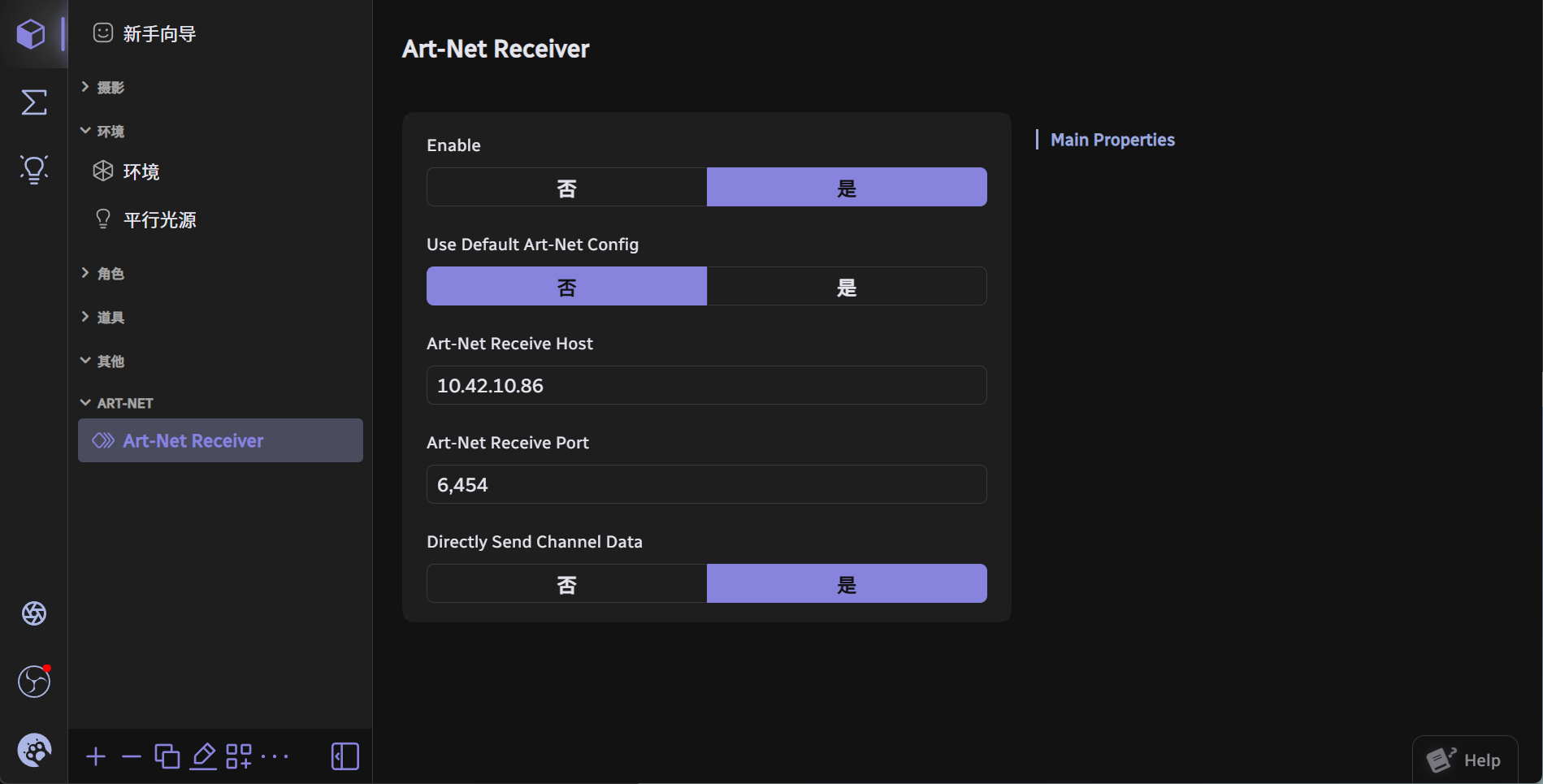
Once the receiver is enabled, Warudo sends incoming Art-Net DMX data to the mods in the scene.
Remap Art-Net Channels
If the controller channels do not match the channels expected by your mod, you can remap them. For example, you can map channel 1 on the controller to channel 3 in the mod.
Disable Send Channel Data Directly, then edit the channel remapping table:
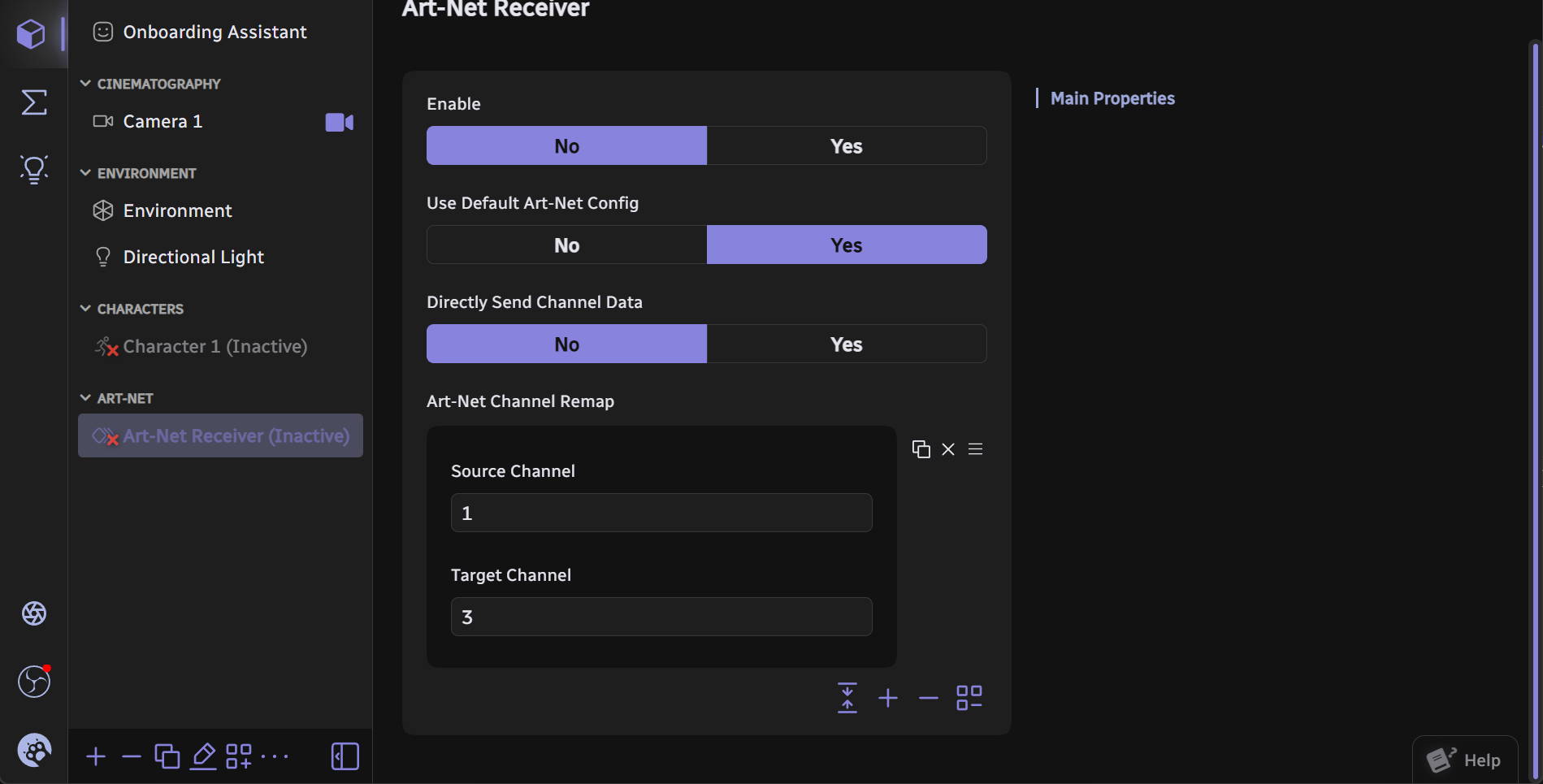
Remapping is applied before the data is sent to the mod, so the mod receives the remapped channel data.
Authors