Datos Estructurados
Structured data es una forma de definir una estructura de datos embebida dentro de una entity.Son útiles para definir data inputs complejos que necesitan ser reutilizados dentro de la misma entity o a través de múltiples entities.
Definición de Tipo
Puedes crear tipos de structured data heredando del tipo StructuredData, como se muestra abajo:
public class MyTransformData : StructuredData {
    [DataInput]
    public Vector3 Position;

    [DataInput]
    public Vector3 Rotation;

    [DataInput]
    public Vector3 Scale = Vector3.one;

    [Trigger]
    public void ResetAll() {
        Position = Vector3.zero;
        Rotation = Vector3.zero;
        Scale = Vector3.one;
        Broadcast();
    }
}
Entonces puedes usar este tipo de structured data como el tipo de cualquier campo de data input en una entity:
[DataInput]
public MyTransformData MyTransform;
Lo cual se ve así:
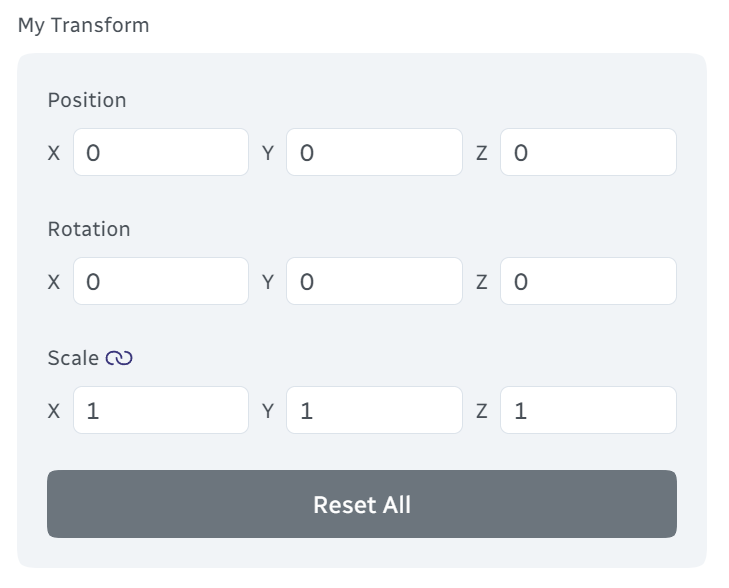
Ten en cuenta que no necesitas asignar un valor al campo de structured data ya que será instanciado automáticamente cuando la entity es creada. Eso significa que puedes acceder a los data inputs del structured data directamente:
public override void OnCreate() {
    base.OnCreate();
    MyTransform.ResetAll();
}
Componentes
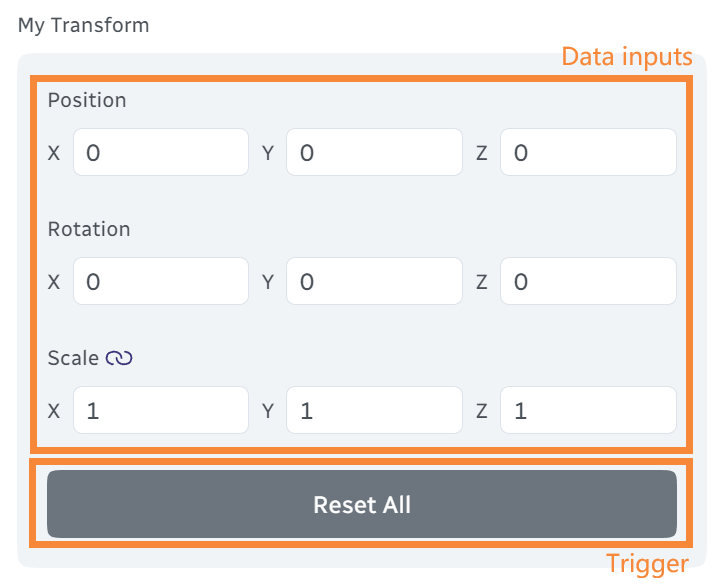
Un tipo de structured data puede definir data inputs y triggers.
Ciclo de Vida
Un structured data solo tiene un evento adicional del ciclo de vida OnUpdate(), además de los eventos estándar del ciclo de vida (ej., OnCreate()) listados en la página Entities.
Los structured data se entienden mejor como contenedores de datos, así que no debes realizar lógica complicada dentro de ellos. Se recomienda mantener los structured data tan simples como sea posible y dejar que la entity padre maneje el trabajo pesado.
Actualizando Structured Data
Los structured data son solo entities, así que puedes actualizar sus data inputs como cualquier otra entity:
MyTransform.SetDataInput(nameof(MyTransform.Position), new Vector3(1, 2, 3), broadcast: true);

// o

MyTransform.Position = new Vector3(1, 2, 3);
MyTransform.BroadcastDataInput(nameof(MyTransform.Position));
Cuando actualices múltiples data inputs, también puedes simplemente asignar a los campos directamente, y usar el método Broadcast para transmitir todos los data inputs de una vez:
MyTransform.Position = new Vector3(1, 2, 3);
MyTransform.Rotation = new Vector3(0, 0, 0);
MyTransform.Scale = new Vector3(1, 1, 1);
MyTransform.Broadcast(); // O BroadcastDataInput(nameof(MyTransform));
Structured Data Anidados
Los structured data pueden ser anidados:
public class MyData1 : StructuredData {
    [DataInput]
    public MyData2 NestedData;

    public class MyData2 : StructuredData {
        [DataInput]
        public MyData3 NestedData;

        public class MyData3 : StructuredData {
            [DataInput]
            public bool SuperNestedBool;
        }
    }
}
Arrays
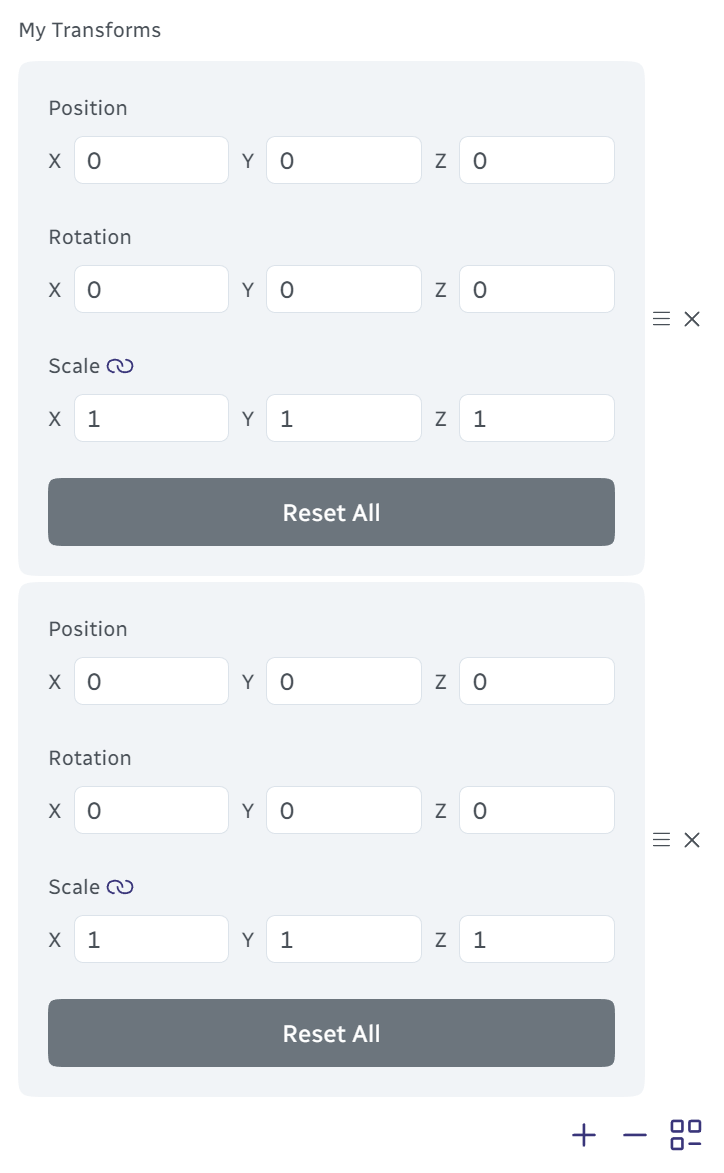
También puedes definir arrays de structured data:
[DataInput]
public MyTransformData[] MyTransforms;
Ten en cuenta que no necesitas inicializar el array. Warudo automáticamente inicializará un array vacío:

Cuando el usuario hace clic en el botón +, elementos de structured data son agregados al array:
Inicializador Personalizado
Los elementos en un array de datos estructurados se inicializan automáticamente por Warudo:
[DataInput]
public MyTransformData[] MyTransforms; // Each MyTransforms[i].Scale is initialized to (1, 1, 1)
Sin embargo, a veces puede que quieras inicializar el nuevo elemento con valores dinámicos. Podemos usar el atributo [StructuredDataInitializer] para especificar un método que será llamado para inicializar el dato estructurado:
[DataInput]
[StructuredDataInitializer(nameof(InitializeTransform))]
public MyTransformData[] MyTransforms;

protected void InitializeTransform(MyTransformData transform) {
    transform.Position = new Vector3(Random.value, Random.value, Random.value);
    transform.Rotation = new Vector3(Random.value, Random.value, Random.value);
    transform.Scale = new Vector3(Random.value, Random.value, Random.value);
    // Note there is no need to broadcast - the structured data has not be sent to the editor anyway
}
Cuando el usuario hace clic en el botón +, se llama al método InitializeTransform para inicializar el nuevo elemento de datos estructurados.
Creando Structured Data Programáticamente
Para rellenar manualmente el array de datos estructurados, o para agregar elementos de datos estructurados de forma programática, utiliza el método StructuredData.Create<T>():
public override void OnCreate() {
    base.OnCreate();

    // Create a new structured data instance
    var mySampleData = StructuredData.Create<MyTransformData>();
    mySampleData.Position = new Vector3(1, 2, 3);
    // Or equivalently
    // var mySampleData = StructuredData.Create<MyTransformData>(sd => sd.Position = new Vector3(1, 2, 3));

    SetDataInput(nameof(MyTransforms), new [] { mySampleData }, broadcast: true);
}

[Trigger]
public void AddNewRandomTransform() {
    var newTransform = StructuredData.Create<MyTransformData>();
    newTransform.Position = new Vector3(Random.value, Random.value, Random.value);
    newTransform.Rotation = new Vector3(Random.value, Random.value, Random.value);
    newTransform.Scale = new Vector3(Random.value, Random.value, Random.value);

    var newTransforms = new List<MyTransformData>(MyTransforms);
    newTransforms.Add(newTransform);

    SetDataInput(nameof(MyTransforms), newTransforms.ToArray(), broadcast: true);
}
Do not use new MyTransformData() to create structured data instances. Always use StructuredData.Create<T>() to ensure proper entity initialization.
Structured Data Plegable
Structured data can be collapsed to save space:
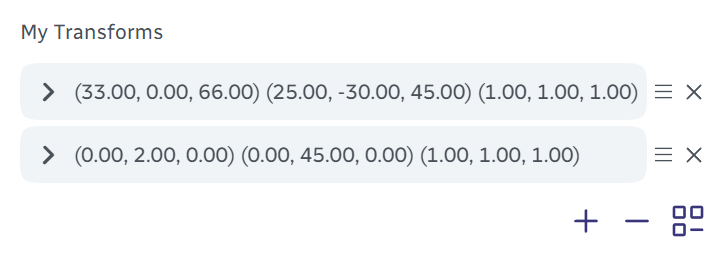
You only need to implement the ICollapsibleStructuredData interface:
public class MyTransformData : StructuredData, ICollapsibleStructuredData {
    // ...

    public string GetHeader() => Position + " " + Rotation + " " + Scale;
}
You can use the CollapsedSelf and CollapsedInHierarchy properties to determine whether the structured data is collapsed. For example, you can toggle the visibility of a GameObject in the Unity scene based on the structured data's collapsed state:
public override void OnUpdate() {
    base.OnUpdate();
    gameObject.SetActive(!CollapsedInHierarchy);
}
Accediendo a la Entity Padre
If you need to access the parent entity from the structured data, you can change the base class to StructuredData<TParent> and use the Parent property, which is automatically casted to TParent. Using the MyTransformData example:
[AssetType(...)]
public class MyTransformAsset : Asset {

    [DataInput]
    public MyTransformData MyTransform;

    protected void ParentMethod() {
        // ...
    }

    public class MyTransformData : StructuredData<MyTransformAsset> {
        // ...

        public void AccessParentMethod() {
            Parent.ParentMethod();
        }
    }
}
Note that Parent is null when OnCreate is called, so you should not access the parent entity in OnCreate. Instead, implement the OnAssignedParent() callback:
public class MyTransformData : StructuredData<MyTransformAsset> {
    public override void OnAssignedParent() {
        Parent.ParentMethod();
    }
}
Diálogo de Entrada de Structured Data
A very common use case for structured data is to allow the user to input data in a dialog. Remember the onboarding assistant? Every popup window that showed up during the onboarding process was actually a structured data!
To create a structured data input dialog, you simply define a structured data type and call Context.Service.PromptStructuredDataInput<T>:
[Trigger]
public async void PromptUserInput() {
    var sd = await Context.Service.PromptStructuredDataInput<MyTransformData>("Customize Your Transform");
    if (sd == null) return; // The user clicked cancel

    Context.Service.Toast(ToastSeverity.Success,
        "Thank you for your input!",
        "Your new transform is: " + sd.GetHeader());
    SetDataInput(nameof(MyTransform), sd, broadcast: true);
}
When combined with [Markdown(primary: true)] on string data inputs and [CardSelect] on enum data inputs, plus some clever use of [HiddenIf], you will be able to create great-looking and user-friendly dialogs in your plugins!
Diálogo de Reintento
You can "retry" the current dialog by calling PromptStructuredDataInput again with the current structured data:
[Trigger]
public async void PromptUserInput() {
    var sd = await Context.Service.PromptStructuredDataInput<MyTransformData>("Customize Your Transform");
    if (sd == null) return; // The user clicked cancel

    while (sd.Position == Vector3.zero) {        Context.Service.Toast(ToastSeverity.Error, "Invalid Input", "Position cannot be zero!");
        sd = await Context.Service.PromptStructuredDataInput("Customize Your Transform", sd); // Ten en cuenta el segundo parámetro
        if (sd == null) return; // El usuario hizo clic en cancelar
    }
}
Esto guarda las ediciones del usuario al structured data mientras les permite corregir las entradas inválidas.